
Vim Masterclass
Mastering the vi and Vim Editors on the Linux, Unix, Mac, and Windows Operating Systems
Lo que serás capaz de hacer
Did you know that the most productive command line experts exploit the powerful features of the Vim text editor? The problem is that if you want to get really good with Vim it can take you an extremely long time if you're trying to learn it on your own. That's why the Vim Masterclass was created. This course gives you the absolute shortest path to learning the basics. It also provides you the fastest way to learn the most advanced features, too. By the time you finish the Vim Masterclass you'll know how to: Work with multiple files , including how to move data back and forth between different files, copying & pasting from one file to another, and quickly jumping to another file. You'll also learn how to view multiple files at the same time using Vim's windowing system. Use the must-know keyboard shortcuts and how to remember them easily. You'll actually learn how to "think in Vim" so you don't even have to memorize each and every command, saving you countless hours of work. Find and replace entire blocks of information within a file. That includes how to refactor your code by renaming all variables in a file or set of files, reliably. Of course, you'll learn simple find and replace techniques to replace a word in an entire file and much more. Cut, copy and paste . You'll find out how to make the most of Vim's built-in clipboard system, use Vim's clipboard history, and how to access your system's clipboard from within Vim. Visually select blocks of text and perform edits on those blocks like moving the block, deleting the block, indenting/shifting the block, and more. You'll understand Vim's text objects so you can quickly select single or multiple words, lines, paragraphs, HTML/XML tags, code blocks, and more. How to make vertical edits and use Vim's Visual Block Mode. (Some call this column editing mode or rectangle mode…) Enable syntax highlighting for source code, configuration files, or any type of file you edit often. That includes how to customize the color scheme and color code text in Vim. Employ simple to advanced navigation techniques so you can go exactly to where you need in a file very fast. Practical application tips such as how to edit source code, scripts, HTML, and more. You'll find lots of opportunities for practice in this course. Make the most of the built-in help system to quickly find what you need, all without leaving Vim. Use MacVim and gVim on Linux and Windows. This includes learning the advantages and disadvantages of both the textual interface and the graphical interfaces to Vim. Create, save, and replay macros to normalize data and quickly repeat complicated edits. You'll learn how to append or prepend text to every line in a text file, how to format one line of text and apply that formatting to a specified area in the file and more. In short, you'll learn how to automate everything in Vim. Create custom shortcuts and personalized key mappings . If you want to create a shortcut for something you do often, you'll find out how to make your life a whole lot easier. Indent and shift blocks of text . You'll also learn how to enable auto indentation so you can quickly clean up and prettify your source code. And more... When you start the course, you'll be able to use vim almost immediately. I want to make sure you get up and running as quickly as possible. That's why at the beginning of the course you'll learn how to start vim, how to make simple edits, and how to save your changes. After that, we'll build on your knowledge and even get into some really advanced techniques such as editing multiple files at once, creating macros, making global substitutions in many files at the same time, ways to format and normalize data, how to "think in vim", and much more. Having taught thousands of students over the years, I know people learn best by doing. That's why I've packed this course with tons of practice exercises. For each exercise you, get detailed, step-by-step instructions. I encourage you to try the labs on your own first. Then I walk through the exercise while you look over my shoulder. Not only will you learn the concepts, you'll watch me demonstrate how to put those concepts to good use, and you'll practice those new skills immediately so that you really understand and retain what you're learning. This course is ideal for anyone who works on the command line often. Whether you're a system administrator, a developer, a database administrator, or anyone else who has to edit files in a command line environment, this course is for you. Even though this course does cover the graphical version of vim, it is NOT for people who are looking for "what you see is what you get" (WYSIWYG) word processing help. No, this course is for people who want to get really efficient at editing plain text files, such as server configuration files, shell scripts, source code, and any other type of textual data. So, if you're tired of being scared of vim, or just aren't making the progress you'd hope to by just dabbling in vim, it's time to take your vim skills to the next level by enrolling in this course. Enroll Now!
- Open Vim, edit files, save your work, and exit safely.
- Use Normal, Insert, Visual, and Command-Line mode with confidence.
- Move around files quickly using Vim’s core navigation commands.
- Delete, copy, paste, and move text using Vim commands and registers.
- Search, find, and replace text in one file or across many files.
- "Think in Vim" by combining counts, operators, motions, and text objects.
Temario
UNIDAD 1 - Course Introduction · 3 leccionesUNIDAD 1 - Course Introduction
UNIDAD 1 - Course Introduction
- Course Overview
- Course Download
- What Vim Is and Why You Should Learn It
UNIDAD 2 - Vim Quickstart · 4 leccionesUNIDAD 2 - Vim Quickstart
UNIDAD 2 - Vim Quickstart
- Modes
- Vim Quickstart
- Exercise 01 Creating and Editing a New File with Vim
- Exercise 01 Creating and Editing a New File with Vim - Walkthrough
UNIDAD 3 - Vim Essentials · 6 leccionesUNIDAD 3 - Vim Essentials
UNIDAD 3 - Vim Essentials
- Essential Navigation Commands
- Exercise 02 Essential Navigation Commands
- Exercise 02 Essential Navigation Commands - Walkthrough
- Deleting Text and "Thinking in Vim"
- Exercise 03 - Deleting Text
- Exercise 03 - Deleting Text - Walkthrough
UNIDAD 4 - The Vim Help System · 3 leccionesUNIDAD 4 - The Vim Help System
UNIDAD 4 - The Vim Help System
- Getting Help
- Exercise 04 - Getting Help
- Exercise 04 - Getting Help - Walkthrough
UNIDAD 5 - Deleting, Yanking, and Putting · 4 leccionesUNIDAD 5 - Deleting, Yanking, and Putting
UNIDAD 5 - Deleting, Yanking, and Putting
- Cut, Copy and Paste - Part I
- Cut, Copy and Paste - Part 2 - Registers
- Exercise 05 - Cut, Copy and Paste
- Exercises 05 - Cut, Copy and Paste - Walkthrough
UNIDAD 6 - Transforming and Substituting Text · 7 leccionesUNIDAD 6 - Transforming and Substituting Text
UNIDAD 6 - Transforming and Substituting Text
- Inserting, Changing, Replacing, and Joining
- Search, Find, and Replace - Part One
- Search, Find, and Replace - Part Two
- Exercise 06 - Inserting, Changing, Replacing, and Joining
- Exercise 06 - Inserting, Changing, Replacing, and Joining - Walkthrough
- Exercise 07 - Search, Find, and Replace
- Exercise 07 - Search, Find, and Replace - Walkthrough
UNIDAD 7 - Text Objects and Macros · 6 leccionesUNIDAD 7 - Text Objects and Macros
UNIDAD 7 - Text Objects and Macros
- Text Objects
- Exercise 08 - Text Objects
- Exercise 08 - Text Objects - Walkthrough
- Macros
- Exercise 09 - Macros
- Exercise 09 - Macros - Walkthrough
UNIDAD 8 - Visual Mode · 4 leccionesUNIDAD 8 - Visual Mode
UNIDAD 8 - Visual Mode
- Visual Mode - Part 1
- Visual Mode - Part 2
- Exercise 10 - Visual Mode
- Exercise 10 - Visual Mode - Walkthrough
UNIDAD 9 - Vim Settings, Preferences, and Customizations · 4 leccionesUNIDAD 9 - Vim Settings, Preferences, and Customizations
UNIDAD 9 - Vim Settings, Preferences, and Customizations
- Vim Settings and the Vimrc File - Part 1
- Vim Settings and the Vimrc File - Part 2
- Exercise 11 - Vim Settings and the Vimrc File
- Exercise 11 - Vim Settings and the Vimrc File - Walkthrough
UNIDAD 10 - Vim Buffers and Windows · 4 leccionesUNIDAD 10 - Vim Buffers and Windows
UNIDAD 10 - Vim Buffers and Windows
- Editing Multiple Files and Vim Buffers
- Exercise 12 - Vim Buffers
- Exercise 12 - Vim Buffers - Walkthrough
- Working with Multiple Windows
UNIDAD 11 - Vim Plugins · 1 leccionesUNIDAD 11 - Vim Plugins
UNIDAD 11 - Vim Plugins
- Managing Vim Plugins
UNIDAD 12 - Vim Graphical User Interfaces: Gvim and MacVim · 1 leccionesUNIDAD 12 - Vim Graphical User Interfaces: Gvim and MacVim
UNIDAD 12 - Vim Graphical User Interfaces: Gvim and MacVim
- Vim Graphical User Interfaces: Gvim and MacVim
UNIDAD 13 - Live Q&A Calls · 2 leccionesUNIDAD 13 - Live Q&A Calls
UNIDAD 13 - Live Q&A Calls
- Live Q&A Call #1
- Live Q&A Call #2
UNIDAD 14 - Bonus Section · 1 leccionesUNIDAD 14 - Bonus Section
UNIDAD 14 - Bonus Section
- Bonus Lecture
Tu certificado lo emite la SEP, no solo una plataforma
Al demostrar la competencia recibes un certificado emitido por la Secretaría de Educación Pública a través del Gobierno del Estado de México: un documento oficial que puedes presentar con confianza ante cualquier empleador o institución.
Tu certificado con INEC
- Lo emite la Secretaría de Educación Pública (SEP), a través del Gobierno del Estado de México
- Documento oficial con folio verificable en línea
- Lo otorga la Universidad Tecnológica Fidel Velázquez
Otras plataformas en línea
- Constancia privada emitida por la misma plataforma
- Solo acredita horas cursadas o asistencia
- Sin respaldo de una autoridad educativa
Tu itinerario, de la inscripción al certificado
- 1
Inscripción con pago único
Pagas $2,800 MXN una sola vez y entras de inmediato al curso.
- 2
Estudias a tu ritmo
14 unidades con videos, lecturas y actividades, disponibles 24/7 durante 12 meses.
- 3
Cuestionarios por unidad
Cuestionarios para comprobar lo aprendido.
- 4
Certificado
Emitido por la SEP a través del Gobierno del Estado de México, con folio verificable.
Un certificado oficial de la SEP
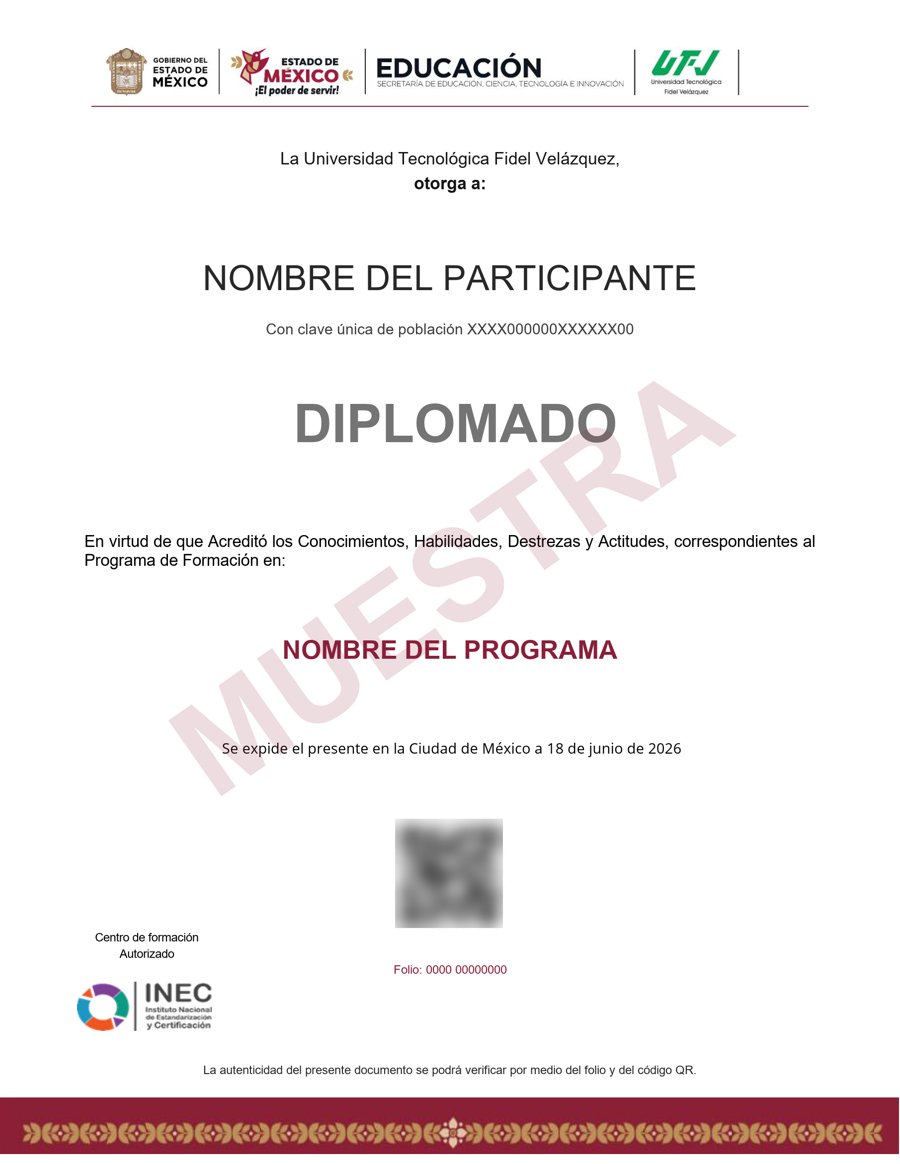
Muestra · verificable por folio y QR
- Emitido por la Secretaría de Educación Pública (SEP), a través del Gobierno del Estado de México. No es una constancia privada: es un documento oficial, y ese respaldo marca la diferencia frente a otras plataformas en línea.
- Contenido impartido por Jason Cannon.
- Folio y QR verificables para compartirlo con quien te contrate.
Empieza hoy, a tu ritmo
Un solo pago y acceso inmediato al curso completo durante 12 meses.
- 14 unidades · 50 lecciones · 60 h
- 12 meses de acceso
- Certificado emitido por la SEP (Gob. del Estado de México) con folio verificable
Sobre tu inscripción
¿Cómo es el pago?
Un solo pago de $2,800 MXN. No hay mensualidades ni cargos recurrentes.
¿Cuánto tiempo tengo acceso?
12 meses desde tu inscripción, 24/7, para avanzar a tu ritmo.
¿Quién imparte el contenido?
El curso es impartido por Jason Cannon; INEC gestiona tu inscripción, evaluación y certificado.
¿Qué pasa cuando vence mi acceso?
Puedes renovar tu cuenta tú mismo desde la plataforma, sin trámites ni esperas.

