
Mastering Visual Studio Code (2026)
Boost your productivity with Visual Studio Code, the best code editor of the moment!
Lo que serás capaz de hacer
In just a few years, Visual Studio Code became the number 1 tool any programmer should use. Even if you need a simple code editor , or a complex IDE , with rich features like refactoring, linting or debugger, VSCode is the tool you need. Why use one tool for your HTML and CSS, one for your back-end development and another one for course control, when you can have everything you need in one single, fast and beautiful program: Visual Studio Code . Welcome to my Mastering Visual Studio Code course, where you will learn everything you need about this awesome tool! VSCode features and topics covered: Installation and first steps Visual and functional setup Easily handle Visual Studio Code extensions General programming topics: Debugging Refactoring Code snippets File formatting and comments Use Visual Studio Code for JavaScript and TypeScript programming. Debug NodeJs and Browser apps. Use Visual Studio Code for Python or Java programming. Learn about the most popular VSCode extensions and even build and test your own extension. Use Remote capabilities of VSCode inside VMs and Docker. Learn Source and version control with Visual Studio Code and GitHub . Learn about Basic Git commands and VSCode authentication for remote pushing. Learn about advanced Visual Studio Code features like profiles or multi-cursor. Course features list: Installation and setup VSCode interface guide Command palette, key shortcuts, multi-cursor VSCode extensions Advanced debugging techniques Use VSCode for web development: HTML, CSS and JS Connect from VSCode with remote SSH Use Docker and develop inside a container Understand Markdown and JSDoc VSCode for Python development Create Java projects with VSCode Use VS Code for C++ and C# Build a VSCode extension with a data service using TypeScript Master great extensions, like live share, Git lens, Code Runner, Remote Development and many more Visual Studio Code tips and tricks History of VSCode You can practice VS Code with your own JavaScript/TypeScript project, or use the one provided by the instructor. The objective here is to help you understand deeply how VSCode works and how you can use it. This course stands out with many advantages and highlights: Demanded topic - Visual Studio Code is the number one development tool of the moment Downloadable resources - all files used in the course are available for download Updated content - completely updated for 2024 Concise content with respect for your time - most of the typing and idle times are cut. The course focuses on explanations Beyond the basics structure : Visual Studio Code has great and up to date documentation. This course doesn't just walk you through it, instead it focuses on the difficult or weird parts, where you actually need guidance Experienced and programming active instructor: a great teacher never looses touch with the industry. This is especially true for software development, where the industry is so dynamic. This helps the instructor stay up to date with the best coding guidelines and present you the challenging parts, not the "hello world" Great visuals - dark background, big font, 1080p resolution. Video optimized even for mobile devices. Certificate of completion Enroll and unlock the key to great productivity, no matter what technology you develop!
- Install and configure VSCode for your specific operating system
- Explore the UI of VSCode and quickly learn how to customize it for your needs
- Design state of the art projects and lint, refactor and debug your program all within your IDE
- VSCode advanced debugging techniques for JS, Python, Java, C++
- Analyze big codebases easily with VSCode
- Develop remotely with SSH directly inside your IDE
Temario
UNIDAD 1 - Introduction · 3 leccionesUNIDAD 1 - Introduction
UNIDAD 1 - Introduction
- How to take this course
- Udemy tips
- VSCode installation
UNIDAD 2 - First steps with VSCode · 14 leccionesUNIDAD 2 - First steps with VSCode
UNIDAD 2 - First steps with VSCode
- Section intro
- Visual Studio Code interface
- File explorer
- Editing files
- Opening folders
- Command palette and key shortcuts
- Visual customization
- Settings
- VSCode Extensions
- Text search
- File search
- Section quizz
- Optional - cursor tricks
- Optional - workspaces
UNIDAD 3 - Coding with Code - general topics · 12 leccionesUNIDAD 3 - Coding with Code - general topics
UNIDAD 3 - Coding with Code - general topics
- Section intro
- The terminal
- Intellisense
- Code comments
- File formatting
- The Debugger
- Refactoring
- Code snippets
- Peek and Find
- Optional - Extensions
- Section quizz
- Section extensions
UNIDAD 4 - Halfway discussion · 1 leccionesUNIDAD 4 - Halfway discussion
UNIDAD 4 - Halfway discussion
- Halfway discussion
UNIDAD 5 - JavaScript, TypeScript and NodeJs with Visual Studio Code · 14 leccionesUNIDAD 5 - JavaScript, TypeScript and NodeJs with Visual Studio Code
UNIDAD 5 - JavaScript, TypeScript and NodeJs with Visual Studio Code
- Section intro
- Working with Types
- Code Navigation
- Linting with Eslint
- Formatting with Prettier
- Debugging: JavaScript on Node
- Debugging: JavaScript in Browser
- Debugging: TypeScript on Node
- Debugging: TypeScript in Browser
- Paste JSON as Code
- VSCode and React
- VSCode and Vue
- VSCode and Angular
- Section extensions
UNIDAD 6 - Python in VSCode · 10 leccionesUNIDAD 6 - Python in VSCode
UNIDAD 6 - Python in VSCode
- Section intro
- Python in VSCode
- Python formatting and linting
- Python virtual environments
- Python debugger
- Python unit testing
- Optional - Jupyter notebooks
- Further reading
- Section extensions
- Adopting VSCode for Python development
UNIDAD 7 - Java in VSCode · 10 leccionesUNIDAD 7 - Java in VSCode
UNIDAD 7 - Java in VSCode
- Section intro
- Install Java and Maven
- VSCode setup for Java development
- Java in VSCode
- Working with Junit tests
- Java debugger
- Java - Code assistance and refactor
- Formatting Java code
- Adopting VSCode for Java
- Section extensions
UNIDAD 8 - C++ in VSCode · 5 leccionesUNIDAD 8 - C++ in VSCode
UNIDAD 8 - C++ in VSCode
- Section intro
- Compiler installation
- C++ in VSCode
- C++ build, run and debug
- Section extensions
UNIDAD 9 - GitHub Copilot · 13 leccionesUNIDAD 9 - GitHub Copilot
UNIDAD 9 - GitHub Copilot
- Section intro
- GitHub Copilot introduction
- Signing up for GitHub Copilot
- GitHub copilot setup
- GitHub copilot chat
- Advanced chat features
- Code completions
- Explain, Document, Review
- Learning with GitHub Copilot
- Prompting tips
- Section quizz
- Adopting GitHub Copilot
- Section extensions
UNIDAD 10 - Advanced GitHub Copilot · 9 leccionesUNIDAD 10 - Advanced GitHub Copilot
UNIDAD 10 - Advanced GitHub Copilot
- Section intro
- Custom instructions
- Advanced configuration for Copilot
- Agent mode and vibe coding
- Custom chat mode
- Model Context protocol intro
- Installing MCP servers
- Custom MCP servers
- MCP project: daily tasks
UNIDAD 11 - Working with no code files · 5 leccionesUNIDAD 11 - Working with no code files
UNIDAD 11 - Working with no code files
- Section intro
- Markdown
- YAML
- SQL files and SQL client
- Section extensions
UNIDAD 12 - Web design · 5 leccionesUNIDAD 12 - Web design
UNIDAD 12 - Web design
- Section intro
- Writing HTML
- Writing CSS
- Live Server Extension
- Section extensions
UNIDAD 13 - Remote development · 6 leccionesUNIDAD 13 - Remote development
UNIDAD 13 - Remote development
- Section intro
- Virtual Machine configuration for remote SSH
- VSCode remote connection
- VSCode and Docker
- Remote development inside Docker
- Section extensions
UNIDAD 14 - Git and Source control · 12 leccionesUNIDAD 14 - Git and Source control
UNIDAD 14 - Git and Source control
- Section intro
- Optional - Git install
- Optional - Git basic commands
- Optional - GitHub and Git config
- Git Authentication
- Git and VIsual Studio Code
- Git branches
- Git Ignore
- Handling commit conflicts
- Git Lens extension
- GitHub CodeSpaces
- Section extensions
UNIDAD 15 - Visual Studio Code profiles · 6 leccionesUNIDAD 15 - Visual Studio Code profiles
UNIDAD 15 - Visual Studio Code profiles
- Section intro
- Create Profiles
- Handle Profiles
- Export and Import Profiles
- Temporary profiles
- Profile templates
UNIDAD 16 - Creating a VSCode extension · 6 leccionesUNIDAD 16 - Creating a VSCode extension
UNIDAD 16 - Creating a VSCode extension
- Section intro
- Extension initial setUp
- Extension data service
- Extension Status bar item
- Multiple extension commands
- Packing and testing the extension
UNIDAD 17 - Visual Studio Code insights · 10 leccionesUNIDAD 17 - Visual Studio Code insights
UNIDAD 17 - Visual Studio Code insights
- Section intro
- VSCode speech
- VSCode tips and tricks
- The Timeline view
- VSCode insiders
- Telemetry
- Optional - AWS toolkit
- Font ligatures
- Course conclusions
- Section extensions
UNIDAD 18 - Ending section · 2 leccionesUNIDAD 18 - Ending section
UNIDAD 18 - Ending section
- Thank you!
- Bonus
Tu certificado lo emite la SEP, no solo una plataforma
Al demostrar la competencia recibes un certificado emitido por la Secretaría de Educación Pública a través del Gobierno del Estado de México: un documento oficial que puedes presentar con confianza ante cualquier empleador o institución.
Tu certificado con INEC
- Lo emite la Secretaría de Educación Pública (SEP), a través del Gobierno del Estado de México
- Documento oficial con folio verificable en línea
- Lo otorga la Universidad Tecnológica Fidel Velázquez
Otras plataformas en línea
- Constancia privada emitida por la misma plataforma
- Solo acredita horas cursadas o asistencia
- Sin respaldo de una autoridad educativa
Tu itinerario, de la inscripción al certificado
- 1
Inscripción con pago único
Pagas $2,800 MXN una sola vez y entras de inmediato al curso.
- 2
Estudias a tu ritmo
18 unidades con videos, lecturas y actividades, disponibles 24/7 durante 12 meses.
- 3
Cuestionarios por unidad
3 cuestionarios para comprobar lo aprendido.
- 4
Certificado
Emitido por la SEP a través del Gobierno del Estado de México, con folio verificable.
Un certificado oficial de la SEP
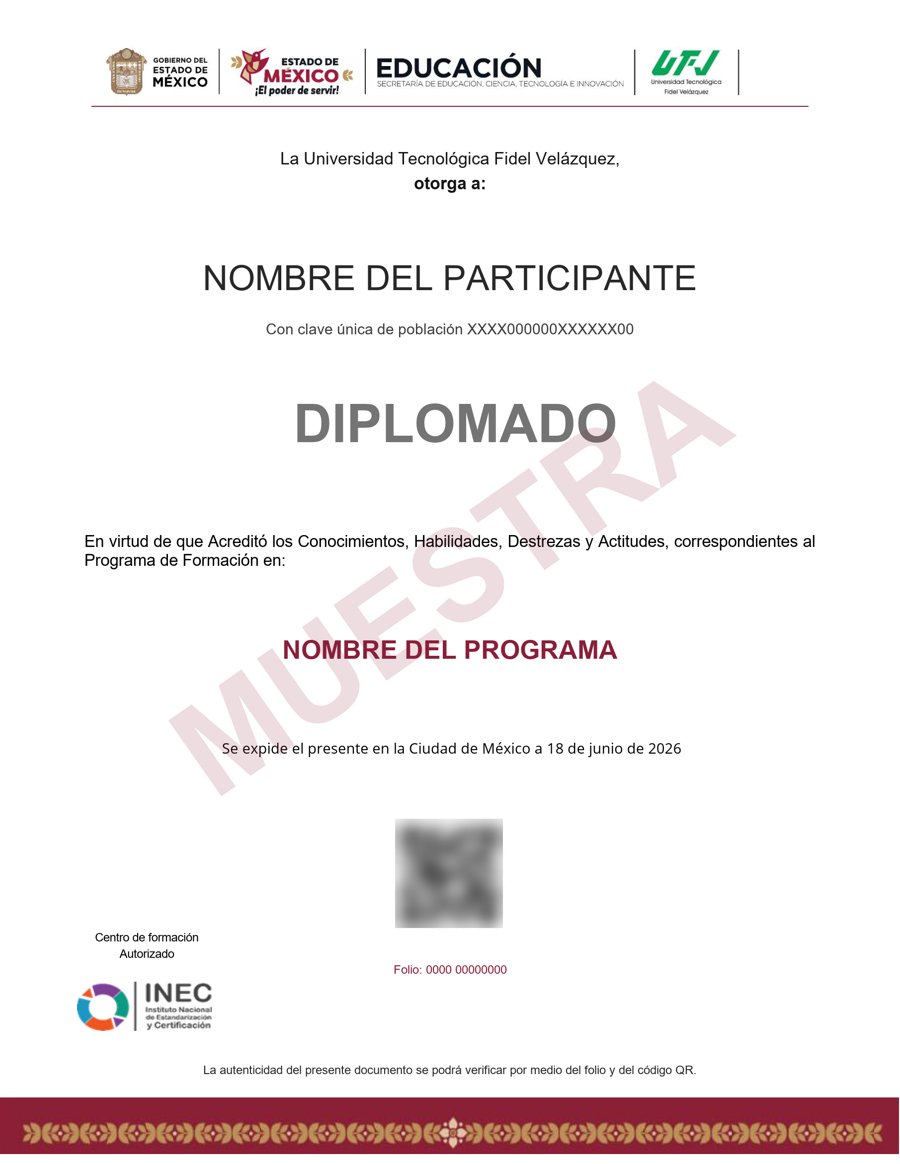
Muestra · verificable por folio y QR
- Emitido por la Secretaría de Educación Pública (SEP), a través del Gobierno del Estado de México. No es una constancia privada: es un documento oficial, y ese respaldo marca la diferencia frente a otras plataformas en línea.
- Contenido impartido por Alex Dan.
- Folio y QR verificables para compartirlo con quien te contrate.
Empieza hoy, a tu ritmo
Un solo pago y acceso inmediato al curso completo durante 12 meses.
- 18 unidades · 143 lecciones · 60 h
- 12 meses de acceso
- 3 cuestionarios de evaluación
- Certificado emitido por la SEP (Gob. del Estado de México) con folio verificable
Sobre tu inscripción
¿Cómo es el pago?
Un solo pago de $2,800 MXN. No hay mensualidades ni cargos recurrentes.
¿Cuánto tiempo tengo acceso?
12 meses desde tu inscripción, 24/7, para avanzar a tu ritmo.
¿Quién imparte el contenido?
El curso es impartido por Alex Dan; INEC gestiona tu inscripción, evaluación y certificado.
¿Qué pasa cuando vence mi acceso?
Puedes renovar tu cuenta tú mismo desde la plataforma, sin trámites ni esperas.

