
Figma UI UX Design Essentials
Use Figma to get a job in UI Design, User Interface, User Experience design, UX Design & Web Design
Lo que serás capaz de hacer
Hi there - my name is Dan Scott & welcome to Figma Essentials. Together - you and me - are going to learn everything you need to get started working as a UX Designer using Figma. We’ll use this UI UX design tool to create beautiful User Interfaces and engaging prototypes. Most importantly... we'll cover the client expectations of you as a new UX designer. This course is aimed at people new to design, new to User Experience design. Even if you’re not totally sure what UX really means, don’t worry. We’ll start right at the beginning and work our way through step by step. First we’ll describe the brief & how to work with a UX persona. Then you’ll learn how to create simple wireframes. From there we’ll look at how to implement colours & images properly in your designs. You’ll learn the do’s & don’ts around choosing fonts for web & mobile apps. You’ll learn how to create your own icons, buttons & other UI components. You’ll learn some pretty scary terms such as Components, Constraints & Multi Dimensional Variants. They are all really easy to understand once you know how. We’ll also make our lives easier by using free UI kits & plugins for Figma which will speed up our workflow dramatically! We’ll build a simple Style Guide ready for client handoff. You’ll understand how to make both simple & advanced micro interactions, page transitions & animations Before the end of this course you will have made fully interactive prototypes You will take a project all the way through - collaborating with other team members and exporting the right files ready to hand off to your developer or software engineer. We’ll be focusing on the software Figma but I’ll make sure to explain the techniques & terms used in the UX and how real world projects are run. You will develop a great understanding of the industry and will be able to manage your own UX projects. I will be setting assignments through the course which will help develop your skills and enable you to create something special and unique for your own portfolio. Alright - it's time to upgrade yourself & go from Figma Zero to Figma Hero.
- How to begin working as a UX Designer using Figma.
- How to use Figma for Essential UX Design & UI Design
- How to make fully interactive prototypes.
- How to work with a UX personas.
- You will be able to add UX designer to your CV.
- Build a UX project from beginning to end.
Temario
UNIDAD 1 - Getting Started · 7 leccionesUNIDAD 1 - Getting Started
UNIDAD 1 - Getting Started
- Introduction to Figma Essentials training course
- Getting started with Figma training
- What is Figma for & does it do the coding?
- Whats the difference between UI and UX in Figma
- What we are making in this Figma course
- Class project 01- Create your own brief
- Class project 01- Create your own brief
UNIDAD 2 - Wireframing - Low Fidelity · 2 leccionesUNIDAD 2 - Wireframing - Low Fidelity
UNIDAD 2 - Wireframing - Low Fidelity
- What is Lo Fi Wireframe vs High Fidelity in Figma
- Creating our design file & introducing frames in Figma
UNIDAD 3 - Type, Color & Icon Introduction · 13 leccionesUNIDAD 3 - Type, Color & Icon Introduction
UNIDAD 3 - Type, Color & Icon Introduction
- The basics of type & fonts in Figma
- Rectangles Circles Buttons Rounded corners in Figma
- How to use color in Figma
- Strokes plus updating color defaults in Figma
- Object editing and how to escape in Figma
- Scale vs Selection Tool in Figma
- Frames vs Groups in Figma
- Class project 02- Wireframe
- Class project 02- Wireframe
- Where to get Free icons for Figma
- How to use Plugins in Figma for icons
- Class project 03 - Icons
- Class project 03 - Icons
UNIDAD 4 - Pages · 1 leccionesUNIDAD 4 - Pages
UNIDAD 4 - Pages
- How to use Pages in Figma
UNIDAD 5 - Prototyping - Level 1 · 6 leccionesUNIDAD 5 - Prototyping - Level 1
UNIDAD 5 - Prototyping - Level 1
- How to prototype in Figma
- Prototype animation and easing in Figma
- How To Add the iOS Status Bar in Figma
- Testing on your phone with Figma Mirror
- Class project 04 - Testing on your phone
- Class project 04 - Testing on your phone
UNIDAD 6 - Animation Level 1 · 3 leccionesUNIDAD 6 - Animation Level 1
UNIDAD 6 - Animation Level 1
- What is Smart Animation & delays in Figma
- Class project 05 - My first animation
- Class project 05 - My first animation
UNIDAD 7 - Commenting · 2 leccionesUNIDAD 7 - Commenting
UNIDAD 7 - Commenting
- Sharing & Commenting on Figma file with Stakeholders
- What are Teams Projects drafts in Figma
UNIDAD 8 - High Fidelity · 4 leccionesUNIDAD 8 - High Fidelity
UNIDAD 8 - High Fidelity
- How I get inspiration for UX projects
- How to create a mood board in Figma
- Class Project 06 - Moodboard
- Class Project 06 - Moodboard
UNIDAD 9 - Columns · 1 leccionesUNIDAD 9 - Columns
UNIDAD 9 - Columns
- How to work with Columns & Grid in Figma
UNIDAD 10 - Tips & Tricks · 1 leccionesUNIDAD 10 - Tips & Tricks
UNIDAD 10 - Tips & Tricks
- Tips Tricks Preferences and Weirdness in Figma
UNIDAD 11 - Colors · 6 leccionesUNIDAD 11 - Colors
UNIDAD 11 - Colors
- Color Inspiration & the eyedropper in Figma
- How to create a color palette in Figma
- How to make gradients in Figma
- How to create & use Color Styles in Figma
- Class Project 07 - Colors & Columns
- Class Project 07 - Colors & Columns
UNIDAD 12 - Text & Fonts Advanced · 11 leccionesUNIDAD 12 - Text & Fonts Advanced
UNIDAD 12 - Text & Fonts Advanced
- Missing Fonts in the Browser of Figma
- What fonts can I use? plus font pairing in Figma
- What common font sizes should I choose in web design?
- How to make Character Styles in Figma
- Lorem ipsum & Placeholder text in Figma
- Using AI To Create Text in Figma
- Useful things to know about text in Figma
- Class project 08 - Text
- Class project 08 - Text
- Text on a Path Curved Text in Figma
- Text Around a Circle Badge in Figma
UNIDAD 13 - Drawing · 9 leccionesUNIDAD 13 - Drawing
UNIDAD 13 - Drawing
- How To Use the Pencil & Brush Tools in Figma
- How To Use the Pen Tool in Figma
- Class Project 09 - Pen Tool
- Class Project 09 - Pen Tool
- How To Use the Shapebuilder in Figma
- Squircle buttons with ios rounded courses in Figma
- Class Project 10 - Icons
- Class Project 10 - Icons
- Smart Selection & Tidy up in Figma
UNIDAD 14 - Images · 6 leccionesUNIDAD 14 - Images
UNIDAD 14 - Images
- Tips & tricks for using images in Figma
- Masking Cropping images in Figma
- Free image & plugin for Figma
- Making AI Images in Figma
- Class Project 11 - Images
- Class Project 11 - Images
UNIDAD 15 - Autolayout's & Constraints · 8 leccionesUNIDAD 15 - Autolayout's & Constraints
UNIDAD 15 - Autolayout's & Constraints
- What is Autolayout & Expanding Buttons in Figma?
- Class project 12 - Buttons
- Class project 12 - Buttons
- Auto Layout for Spacing Navigation in Figma
- How to use constraints in figma
- Combining Nested frames Auto Layout & Constraints in Figma
- Class Project 13 - Responsive Design
- Class Project 13 - Responsive Design
UNIDAD 16 - Effects · 4 leccionesUNIDAD 16 - Effects
UNIDAD 16 - Effects
- Nice drop shadow & Inner drop shadow effects in Figma
- Blur Layer & Background Blur & Image Blur in Figma
- Class project 14 - Effects
- Class project 14 - Effects
UNIDAD 17 - Components & Instances · 4 leccionesUNIDAD 17 - Components & Instances
UNIDAD 17 - Components & Instances
- What are components in Figma
- Where should you keep your main components in Figma
- Class Project 15 - Components
- Class Project 15 - Components
UNIDAD 18 - Variants · 4 leccionesUNIDAD 18 - Variants
UNIDAD 18 - Variants
- How To Make Component Variants in Figma
- Another way to make variants in Figma
- Class Project 16 - Variants
- Class Project 16 - Variants
UNIDAD 19 - Prototyping - Level 2 · 7 leccionesUNIDAD 19 - Prototyping - Level 2
UNIDAD 19 - Prototyping - Level 2
- How to add a popup overlay modal in Figma
- How to make & prototype a tool tip in Figma
- What are Flows in Figma
- Slide in mobile nav menu overlay in Figma
- Class project 17 - Prototyping
- Class project 17 - Prototyping
- How to pin navigation to top in Figma
UNIDAD 20 - Teams & Projects · 1 leccionesUNIDAD 20 - Teams & Projects
UNIDAD 20 - Teams & Projects
- What are Teams vs Projects vs Files in Figma?
UNIDAD 21 - Micro Interactions · 4 leccionesUNIDAD 21 - Micro Interactions
UNIDAD 21 - Micro Interactions
- Interactive Component Variant for Hover Checkbox in Figma
- Micro interaction toggle switch in Figma
- Class Project 18 - Micro interaction
- Class Project 18 - Micro interaction
UNIDAD 22 - Thumbnail Update · 1 leccionesUNIDAD 22 - Thumbnail Update
UNIDAD 22 - Thumbnail Update
- How to change the thumbnail for Figma Files
UNIDAD 23 - Overview of Figma Sites · 1 leccionesUNIDAD 23 - Overview of Figma Sites
UNIDAD 23 - Overview of Figma Sites
- Overview of Figma Sites
UNIDAD 24 - Exporting · 6 leccionesUNIDAD 24 - Exporting
UNIDAD 24 - Exporting
- How to export Images out of Figma
- How to share you document with clients & stakeholders
- Talking to your developer early in the figma design process
- Dev Mode and Handing Off to a Developer
- Class Project 19 - Finish your design
- Class Project 19 - Finish your design
UNIDAD 25 - What next · 2 leccionesUNIDAD 25 - What next
UNIDAD 25 - What next
- What next for you and Figma
- Continue learning with me! Links inside.
Tu certificado lo emite la SEP, no solo una plataforma
Al demostrar la competencia recibes un certificado emitido por la Secretaría de Educación Pública a través del Gobierno del Estado de México: un documento oficial que puedes presentar con confianza ante cualquier empleador o institución.
Tu certificado con INEC
- Lo emite la Secretaría de Educación Pública (SEP), a través del Gobierno del Estado de México
- Documento oficial con folio verificable en línea
- Lo otorga la Universidad Tecnológica Fidel Velázquez
Otras plataformas en línea
- Constancia privada emitida por la misma plataforma
- Solo acredita horas cursadas o asistencia
- Sin respaldo de una autoridad educativa
Tu itinerario, de la inscripción al certificado
- 1
Inscripción con pago único
Pagas $2,800 MXN una sola vez y entras de inmediato al curso.
- 2
Estudias a tu ritmo
25 unidades con videos, lecturas y actividades, disponibles 24/7 durante 12 meses.
- 3
Cuestionarios por unidad
19 cuestionarios para comprobar lo aprendido.
- 4
Certificado
Emitido por la SEP a través del Gobierno del Estado de México, con folio verificable.
Un certificado oficial de la SEP
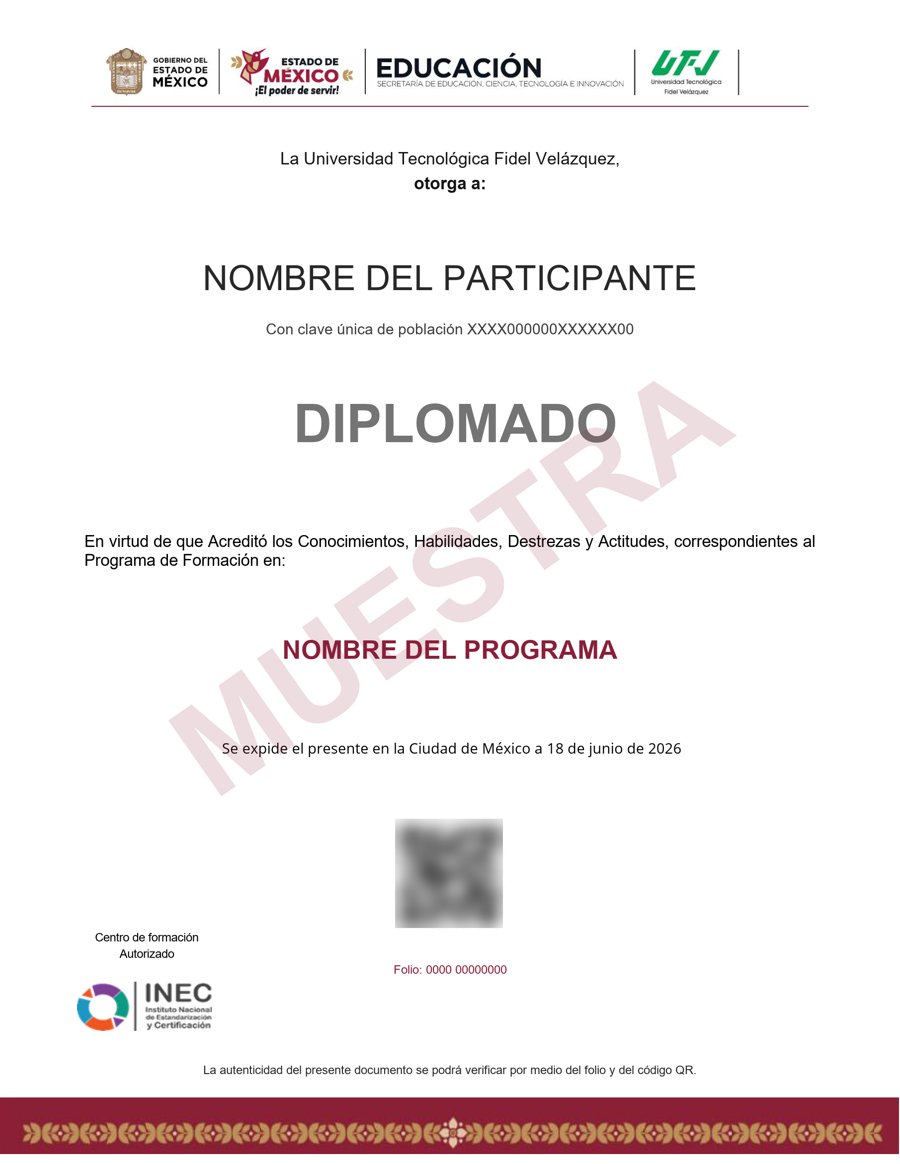
Muestra · verificable por folio y QR
- Emitido por la Secretaría de Educación Pública (SEP), a través del Gobierno del Estado de México. No es una constancia privada: es un documento oficial, y ese respaldo marca la diferencia frente a otras plataformas en línea.
- Contenido impartido por Daniel Walter Scott.
- Folio y QR verificables para compartirlo con quien te contrate.
Empieza hoy, a tu ritmo
Un solo pago y acceso inmediato al curso completo durante 12 meses.
- 25 unidades · 114 lecciones · 60 h
- 12 meses de acceso
- 19 cuestionarios de evaluación
- Certificado emitido por la SEP (Gob. del Estado de México) con folio verificable
Sobre tu inscripción
¿Cómo es el pago?
Un solo pago de $2,800 MXN. No hay mensualidades ni cargos recurrentes.
¿Cuánto tiempo tengo acceso?
12 meses desde tu inscripción, 24/7, para avanzar a tu ritmo.
¿Quién imparte el contenido?
El curso es impartido por Daniel Walter Scott; INEC gestiona tu inscripción, evaluación y certificado.
¿Qué pasa cuando vence mi acceso?
Puedes renovar tu cuenta tú mismo desde la plataforma, sin trámites ni esperas.

