
After Effects CC Masters: VFX, Motion Graphics, Animation+
Learn Beginner to Advanced Adobe After Effects CC: Motion Graphics, Kinetic Typography, Visual Effects VFX, Animation+
Lo que serás capaz de hacer
Master After Effects Motion Graphics with the easiest-to-follow course on Udemy! "I went into this not knowing basically anything and came away with tons of knowledge!" - Louis Matarazzo, Phil's After Effects student Join this Adobe After Effects CC course to have fun while learning quickly! If you are looking to make your videos better, adding motion graphics and visual effects is the way to do that. After Effects CC is used by professionals across the world for every type of production from business & marketing videos, music videos to documentaries, feature films. This full course is the best way to jump right in and start making your own videos come to life. Make videos the way you imagine them! Practice while you learn. This course includes practice files so you can follow along and actually learn by doing. By the end of the course, you'll have finished dozens of real world projects to build your confidence. I'll be teaching the course using the Creative Cloud version, but if you have a previous version (CS6, CS5, etc - Mac or PC), you can still learn with this course. What makes me qualified to teach you? My name is Phil and I'm a professional motion graphics artist and video creator. Phil Ebiner's "The Complete Guide to After Effects," is a wonderful and comprehensive course to dive into this Program, and get started with creating our own animations. - Cavett Robert Very comprehensive, easy to follow course. - Dragan Vukicevic Phil is a g a great instructor who is always willing to help. The way he lays out the course is simple and easy to understand. -Patrick Gilmour My Promise to You I'll be here for you every step of the way. If you have any questions about the course content or anything related to this topic, you can always post a question in the course or send me a direct message. I want to make this the best course on how use Adobe After Effects. So if there is any way I can improve this course, just tell me and I'll make it happen. What's this course all about? Get ready to create motion graphics that will improve your video quality. If you've always wanted to learn how to use video effects and create custom motion graphics, you can learn After Effects CC right now. Practice lessons will get you motivated and moving to your goals. The lessons are meant to teach you how to think like a motion graphics/video effects artist. After Effects is a robust tool that is capable of creating almost any video effect out there. You'll learn all of the basics, intermediate, and some advanced techniques, from working with shapes, text, and textures to video effects, transitions, and 3d camera. Here is a glimpse of what we'll be covering: Getting comfortable with After Effects CC Starting a new composition Using the basic tools Working in the After Effects CC timeline Adding shape and text layers Animating position, scale, rotation, and opacity Working with shape layers and masks Real world projects such as lower thirds and bumpers Motion graphics principles and best practices Using video effects and presets to speed up workflow Green screen and chromakey removal Visual effects and rotoscoping Motion tracking and video stabilization Creating unique transitions Exporting your projects and so much more! Knowing After Effects CC is a great skill to have that is in demand and highly marketable. I've landed many jobs with the skills that I teach you in this course. With our 30-day 100% money back guarantee, there is nothing holding you back from jumping in right now and trying the course out. Go ahead and click the enroll button, and I'll see you in lesson 1! Cheers, Phil
- You will know how to use After Effects to make your videos better than ever
- You will be comfortable using After Effects - even if you're a beginner
- Know how to create a video project from start to finish in After Effects
- Create professional motion graphics that improve your videos
- Add creative visual effects to your video projects
- Export high quality videos from After Effects and know how to use it with Premiere Pro efficiently
Temario
UNIDAD 1 - Introduction to the After Effects Course · 5 leccionesUNIDAD 1 - Introduction to the After Effects Course
UNIDAD 1 - Introduction to the After Effects Course
- Welcome! | After Effects Course
- Download the Course Project Files | After Effects Course
- Animate Your Name! | After Effects Course
- Tutorial Request Form | After Effects Course
- Tips to Improve Your Course Taking Experience | After Effects Course
UNIDAD 2 - After Effects Basics · 10 leccionesUNIDAD 2 - After Effects Basics
UNIDAD 2 - After Effects Basics
- Know Your Way Around After Effects | After Effects Course
- Start a New Composition | After Effects Course
- CC Update: Starting a New Composition from Footage | After Effects Course
- Importing Media and Placing on the Timeline | After Effects Course
- Learn the Important Tools | After Effects Course
- Create a Perfect Square or Circle, Alignment, and Colors | After Effects Course
- The Timeline | After Effects Course
- CC 2023 Update: Properties Panel
- Layer Transformations | After Effects Course
- Instructor Note - Get More Resources and Tips | After Effects Course
UNIDAD 3 - Animating with Keyframes · 7 leccionesUNIDAD 3 - Animating with Keyframes
UNIDAD 3 - Animating with Keyframes
- Adding and Editing Keyframes + Opacity Animations | After Effects Course
- Position, Size, and Rotation Animations | After Effects Course
- Make Animations Better with Easy Ease and Motion Blur | After Effects Course
- Advanced Animations with the Graph Editor | After Effects Course
- Challenge: Bouncing Ball Animation | After Effects Course
- Solution: Bouncing Ball Animation | After Effects Course
- Get More Video Resources & Tips | After Effects Course
UNIDAD 4 - Shapes and Solid Layers · 6 leccionesUNIDAD 4 - Shapes and Solid Layers
UNIDAD 4 - Shapes and Solid Layers
- Working with Solid Layers | After Effects Course
- Working with Shapes | After Effects Course
- Layer Styles - Drop Shadows, Bevel & Emboss, and Gradients
- Shape Effects | After Effects Course
- CC 2020 Update: Tapered Strokes | After Effects Course
- CC 2020 Update: Concentric Shapes | After Effects Course
UNIDAD 5 - Important After Effects Skills · 10 leccionesUNIDAD 5 - Important After Effects Skills
UNIDAD 5 - Important After Effects Skills
- Track Mattes: Make Layers Appear and Disappear | After Effects Course
- Pre-Compositions: Grouping Layers Together | After Effects Course
- Quickly Reversing Animations | After Effects Course
- Freeze Frames, Remapping, Reversing Time | After Effects Course
- Blend Modes | After Effects Course
- Stabilizing Footage | After Effects Course
- CC 2018 Update: Previewing and Favoriting Fonts | After Effects Course
- CC 2019 Update: Responsive Design | After Effects Course
- CC 2019 Update: Content Aware Fill | After Effects Course
- CC 2019 Update: Create Motion Graphics Templates to Use in Premiere Pro
UNIDAD 6 - Motion Graphics Projects · 9 leccionesUNIDAD 6 - Motion Graphics Projects
UNIDAD 6 - Motion Graphics Projects
- Intro to Real World Projects | After Effects Course
- Project: Clean Lower Third | After Effects Course
- Project: Colorful Transition | After Effects Course
- Project: Text with Mask Transition | After Effects Course
- Project: Text Bubble Pop-Up Animation | After Effects Course
- Project: Weather App User Design Animation - Part 1 | After Effects Course
- Project: Weather App User Design Animation - Part 2 | After Effects Course
- Project: Weather App User Design Animation - Part 3 | After Effects Course
- Project: Simple Logo Reveal | After Effects Course
UNIDAD 7 - Flat Animation Challenge · 3 leccionesUNIDAD 7 - Flat Animation Challenge
UNIDAD 7 - Flat Animation Challenge
- Design Your Own Flat Animation Scene | After Effects Course
- Designing My Flat Animation Scene | After Effects Course
- Animating Fireworks with a Repeater Shape | After Effects Course
UNIDAD 8 - Green Screen (Chromakeying) · 4 leccionesUNIDAD 8 - Green Screen (Chromakeying)
UNIDAD 8 - Green Screen (Chromakeying)
- Remove Green Screen with Keylight 1.2 | After Effects Course
- Adding a Background that Matches the Foreground + Parenting
- Adding Motion to a Still Image with the Puppet Tool | After Effects Course
- Adding Motion to the Background Photo with Ripple Effect | After Effects Course
UNIDAD 9 - 3D Animations and the Camera Tool · 5 leccionesUNIDAD 9 - 3D Animations and the Camera Tool
UNIDAD 9 - 3D Animations and the Camera Tool
- 3D in After Effects + The Camera Tool and Views | After Effects Course
- Swinging 3D Rotating Text Animation + Null Objects | After Effects Course
- Building a 3D Composition | After Effects Course
- Animating in 3D Space | After Effects Course
- Creating Stars in After Effects | After Effects Course
UNIDAD 10 - Rotoscoping · 3 leccionesUNIDAD 10 - Rotoscoping
UNIDAD 10 - Rotoscoping
- Make a Selection with the Rotoscope Tool | After Effects Course
- Cleaning Up Edges | After Effects Course
- Putting Rotoscoping to Work | After Effects Course
UNIDAD 11 - Screen Replacements · 4 leccionesUNIDAD 11 - Screen Replacements
UNIDAD 11 - Screen Replacements
- Replacing a Screen with Easy Masking | After Effects Course
- Replacing a Screen with Masking and 3D Motion | After Effects Course
- Replacing Device Screens with Mocha | After Effects Course
- CC 2019 Update: Mocha Native Plugin | After Effects Course
UNIDAD 12 - Puppet Tool Animations · 5 leccionesUNIDAD 12 - Puppet Tool Animations
UNIDAD 12 - Puppet Tool Animations
- Setting Your Pins | After Effects Course
- Animating Your Pins to Make a Bird Fly | After Effects Course
- Animating Your Owl's Blinking Eyes | After Effects Course
- Adding Perspective with Animated Clouds | After Effects Course
- CC 2019 Update: Advanced Puppet Tools | After Effects Course
UNIDAD 13 - Effects & Presets · 5 leccionesUNIDAD 13 - Effects & Presets
UNIDAD 13 - Effects & Presets
- Text Animations | After Effects Course
- CC Page Turn | After Effects Course
- Radial and Linear Wipe Effect | After Effects Course
- Color Correction | After Effects Course
- CC 2019 Update: Selective Color Grading | After Effects Course
UNIDAD 14 - Motion Tracking · 4 leccionesUNIDAD 14 - Motion Tracking
UNIDAD 14 - Motion Tracking
- Motion Tracking Basics | After Effects Course
- Attaching Text & Visual Effects to Video Clip with Tracking
- Tracking Scale and Rotation | After Effects Course
- Adding More Details to Your Text | After Effects Course
UNIDAD 15 - Character Animations · 7 leccionesUNIDAD 15 - Character Animations
UNIDAD 15 - Character Animations
- Intro to Character Animations | After Effects Course
- Design Your Character | After Effects Course
- Rigging Body Parts | After Effects Course
- Animate Your Character | After Effects Course
- Adding an Animated Background for Context | After Effects Course
- Adding Details to Your Character Animation | After Effects Course
- Adding the 'Paper Cut Out' Texture to Your Layers | After Effects Course
UNIDAD 16 - Exporting From After Effects · 5 leccionesUNIDAD 16 - Exporting From After Effects
UNIDAD 16 - Exporting From After Effects
- Exporting H.264 Files | After Effects Course
- Exporting with a Transparent Background | After Effects Course
- Exporting Videos with Adobe Media Encoder | After Effects Course
- CC 2018 Update: Exporting an Animated GIF from Adobe Media Encoder
- Creating an Animated GIF with CC 2017 and Earlier Versions
UNIDAD 17 - After Effects Workflow + Tips · 2 leccionesUNIDAD 17 - After Effects Workflow + Tips
UNIDAD 17 - After Effects Workflow + Tips
- Editing Audio in After Effects | After Effects Course
- Working with Premiere Pro Projects | After Effects Course
UNIDAD 18 - Expressions · 3 leccionesUNIDAD 18 - Expressions
UNIDAD 18 - Expressions
- Adding an Expression | After Effects Course
- Animate a Flickering Light with Expressions | After Effects Course
- Dive Deeper with After Effects Expressions | After Effects Course
UNIDAD 19 - Conclusion · 1 leccionesUNIDAD 19 - Conclusion
UNIDAD 19 - Conclusion
- Thank You Video | After Effects Course
UNIDAD 20 - Make Better Videos with Stock Elements (Video, Graphics, Titles, SFX, Music+) · 10 leccionesUNIDAD 20 - Make Better Videos with Stock Elements (Video, Graphics, Titles, SFX, Music+)
UNIDAD 20 - Make Better Videos with Stock Elements (Video, Graphics, Titles, SFX, Music+)
- Work Smarter, Not Harder: Why Use Stock Websites Like Envato Elements
- Which Stock Platforms Do I Recommend?
- How Do I Use Stock Elements in My Videos?
- How to Find the Perfect Assets for Your Videos
- Make Your Video Better with Stock Footage
- Create a Custom Transition & Style in Premiere Pro with Stock
- How to Use Stock Premiere Pro Motion Graphics Files
- Quickly Create Social Media Videos (Shorts, Reels, etc.) with Stock Templates
- How to Edit an After Effects Template File
- Conclusion to this Section
UNIDAD 21 - Bonus Tutorials · 44 leccionesUNIDAD 21 - Bonus Tutorials
UNIDAD 21 - Bonus Tutorials
- What are the bonus tutorials? | After Effects Course
- After Effects Updates + My Favorite CC 2020 Updates | After Effects Course
- Neon Sign Effect | After Effects Course
- Fade Text Up with Motion: Popular YouTuber Animation Style
- Map Animations with 3D Camera Move like YouTuber Drew Binsky
- Sliding Photo Intro Bumper | After Effects Course
- Side Scrolling Video Grid | After Effects Course
- Looped Dots Following a Line Animation | After Effects Course
- How to Attach Text, Graphics and Video to Walls | After Effects Course
- Long Shadow Style | After Effects Course
- Rotoscoping Tutorial | After Effects Course
- Old Film Style | After Effects Course
- Animating with the Puppet Tool | After Effects Course
- 3D Text in After Effects | After Effects Course
- Hologram Effect | After Effects Course
- Cinemagraphs in After Effects | After Effects Course
- Fly Through Text | After Effects Course
- How to Listen to Audio by Scrubbing | After Effects Course
- Marauder's Map Footprint Tutorial | After Effects Course
- Call Out Titles | After Effects Course
- How to Attach a Path Point to Video in After Effects | After Effects Course
- Animate the Mountain and Moon | After Effects Course
- Center Lower Third | After Effects Course
- Text Highlight Effect | After Effects Course
- Animating a Dotted Line | After Effects Course
- How to Easily Swap Layers | After Effects Course
- Minimalist Lower Third Titles | After Effects Course
- How to Snap Your Anchor Points | After Effects Course
- Parenting in After Effects | After Effects Course
- Rotating Kinetic Typography | After Effects Course
- Time Remapping in After Effects | After Effects Course
- Transparent Text Block | After Effects Course
- How to Easily Reverse an Animation | After Effects Course
- Swinging Text Tutorial | After Effects Course
- Text on a Path | After Effects Course
- How to Enable Auto Save | After Effects Course
- Using Arrow Keys for Improved Workflow | After Effects Course
- Basic Kinetic Typography Tutorial | After Effects Course
- Clean Lower Third | After Effects Course
- Create a Count Down without Expressions | After Effects Course
- Valentine's Day Graphic | After Effects Course
- How to Add a Dark & Blurry Background | After Effects Course
- 3D Shapes in After Effects | After Effects Course
- Layering Multiple Effects in After Effects | After Effects Course
UNIDAD 22 - Bonus Project: House of Cards Intro Graphics · 7 leccionesUNIDAD 22 - Bonus Project: House of Cards Intro Graphics
UNIDAD 22 - Bonus Project: House of Cards Intro Graphics
- What is this section? | After Effects Course
- Intro the House of Cards Project | After Effects Course
- Importing Your Assets | After Effects Course
- Create the Flag Animation | After Effects Course
- Adjusting the Speed of Your Animation | After Effects Course
- Adding Text and a Background | After Effects Course
- Exporting in After Effects | After Effects Course
UNIDAD 23 - Bonus Project: Hipster Badge Animation · 10 leccionesUNIDAD 23 - Bonus Project: Hipster Badge Animation
UNIDAD 23 - Bonus Project: Hipster Badge Animation
- What is this section? | After Effects Course
- Intro and Download the Project Files | After Effects Course
- Design Your Badge in Adobe Illustrator | After Effects Course
- Importing the Design into After Effects | After Effects Course
- Preparing Layers by Moving Anchor Points | After Effects Course
- Animate the Badge Outline with Trim Paths | After Effects Course
- Animate the Text | After Effects Course
- Animate the Tent, Fire, and Trees | After Effects Course
- Easily Reverse the Animation | After Effects Course
- Export the Badge with Transparency | After Effects Course
UNIDAD 24 - Bonus Project: Flat Animation Buildup · 8 leccionesUNIDAD 24 - Bonus Project: Flat Animation Buildup
UNIDAD 24 - Bonus Project: Flat Animation Buildup
- What is this section? | After Effects Course
- Intro the Project | After Effects Course
- Designing the Object in Illustrator | After Effects Course
- Preparing the Illustrator File | After Effects Course
- Animating in After Effects | After Effects Course
- How to Quickly Reverse an Animation | After Effects Course
- Exporting Your Animation | After Effects Course
- Conclusion to Project | After Effects Course
UNIDAD 25 - Bonus Section: Using After Effects Templates · 8 leccionesUNIDAD 25 - Bonus Section: Using After Effects Templates
UNIDAD 25 - Bonus Section: Using After Effects Templates
- What is this section? | After Effects Course
- Downloading a Template | After Effects Course
- After Effects Layout | After Effects Course
- Editing a Template | After Effects Course
- Adding and Editing Text | After Effects Course
- How to Turn Audio On and Off | After Effects Course
- Exporting Your Video | After Effects Course
- Editing a Slideshow Template | After Effects Course
UNIDAD 26 - Bonus Section: Advanced Shape Animations · 18 leccionesUNIDAD 26 - Bonus Section: Advanced Shape Animations
UNIDAD 26 - Bonus Section: Advanced Shape Animations
- What is this section? | After Effects Course
- Intro to this Section | After Effects Course
- Shape Refresher | After Effects Course
- Fill & Stroke | After Effects Course
- Trim Paths | After Effects Course
- The Repeater Effect | After Effects Course
- Wiggle Paths | After Effects Course
- Adding Accents | After Effects Course
- Using the Graph Editor | After Effects Course
- Project 1 - Adding Accents | After Effects Course
- Project 2 - Fun Transitions | After Effects Course
- Project 3 - The Repeater Transition | After Effects Course
- Project 4 - Map Effects | After Effects Course
- Project 5 - Text Effect | After Effects Course
- Project 6 - Squeeze and Stretch | After Effects Course
- Project 7 - Hipster Circles | After Effects Course
- Project 8 - Clean Lower Thirds | After Effects Course
- Project 9 - Storytime Slideshow | After Effects Course
UNIDAD 27 - Bonus Projects: After Effects for Entrepreneurs · 15 leccionesUNIDAD 27 - Bonus Projects: After Effects for Entrepreneurs
UNIDAD 27 - Bonus Projects: After Effects for Entrepreneurs
- What is this section? | After Effects Course
- Lower Third - Intro | After Effects Course
- Lower Third - Design Your Text | After Effects Course
- Lower Third - Animate Your Text | After Effects Course
- Lower Third - Exporting with a Transparent Background | After Effects Course
- Modern Transition - Intro | After Effects Course
- Modern Transition - Design and Animate Your Transition | After Effects Course
- Modern Transition - Exporting an dAdding to Your Project | After Effects Course
- YouTube Button - Intro | After Effects Course
- YouTube Button - Animate Your Subscribe Button with a Click
- Social Media Buttons - Intro | After Effects Course
- Social Media Buttons - Design the Graphic | After Effects Course
- Social Media Buttons - Animate the Graphic | After Effects Course
- Social Media Buttons - Quickly Reverse Any Animation | After Effects Course
- Social Media Buttons - Exporting with a Transparent Background
UNIDAD 28 - Bonus Section: Kinetic Typography · 10 leccionesUNIDAD 28 - Bonus Section: Kinetic Typography
UNIDAD 28 - Bonus Section: Kinetic Typography
- What is this section? | After Effects Course
- The Kinetic Typography Project | After Effects Course
- Cut and Scale Animations | After Effects Course
- Position Animations | After Effects Course
- Rotation Animations | After Effects Course
- Reveal Animations | After Effects Course
- Adding a Background | After Effects Course
- Adding Texture to the Background | After Effects Course
- Adding Camera-Like Motion | After Effects Course
- Exporting Your Kinetic Typography | After Effects Course
UNIDAD 29 - Bonuses from Video School · 1 leccionesUNIDAD 29 - Bonuses from Video School
UNIDAD 29 - Bonuses from Video School
- Bonus Lecture: Learn More from Phil + Video School
Tu certificado lo emite la SEP, no solo una plataforma
Al demostrar la competencia recibes un certificado emitido por la Secretaría de Educación Pública a través del Gobierno del Estado de México: un documento oficial que puedes presentar con confianza ante cualquier empleador o institución.
Tu certificado con INEC
- Lo emite la Secretaría de Educación Pública (SEP), a través del Gobierno del Estado de México
- Documento oficial con folio verificable en línea
- Lo otorga la Universidad Tecnológica Fidel Velázquez
Otras plataformas en línea
- Constancia privada emitida por la misma plataforma
- Solo acredita horas cursadas o asistencia
- Sin respaldo de una autoridad educativa
Tu itinerario, de la inscripción al certificado
- 1
Inscripción con pago único
Pagas $2,800 MXN una sola vez y entras de inmediato al curso.
- 2
Estudias a tu ritmo
29 unidades con videos, lecturas y actividades, disponibles 24/7 durante 12 meses.
- 3
Cuestionarios por unidad
1 cuestionarios para comprobar lo aprendido.
- 4
Certificado
Emitido por la SEP a través del Gobierno del Estado de México, con folio verificable.
Un certificado oficial de la SEP
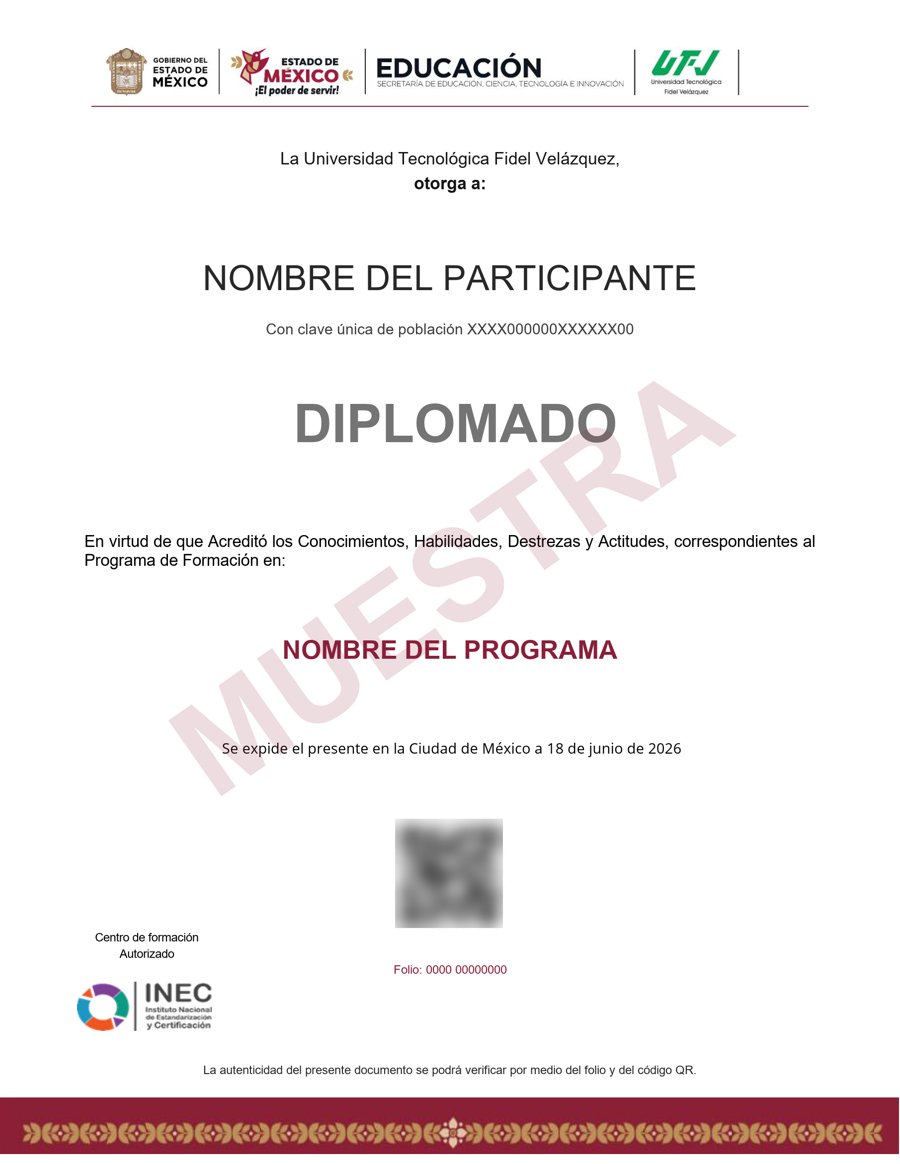
Muestra · verificable por folio y QR
- Emitido por la Secretaría de Educación Pública (SEP), a través del Gobierno del Estado de México. No es una constancia privada: es un documento oficial, y ese respaldo marca la diferencia frente a otras plataformas en línea.
- Contenido impartido por Phil Ebiner.
- Folio y QR verificables para compartirlo con quien te contrate.
Empieza hoy, a tu ritmo
Un solo pago y acceso inmediato al curso completo durante 12 meses.
- 29 unidades · 229 lecciones · 60 h
- 12 meses de acceso
- 1 cuestionarios de evaluación
- Certificado emitido por la SEP (Gob. del Estado de México) con folio verificable
Sobre tu inscripción
¿Cómo es el pago?
Un solo pago de $2,800 MXN. No hay mensualidades ni cargos recurrentes.
¿Cuánto tiempo tengo acceso?
12 meses desde tu inscripción, 24/7, para avanzar a tu ritmo.
¿Quién imparte el contenido?
El curso es impartido por Phil Ebiner; INEC gestiona tu inscripción, evaluación y certificado.
¿Qué pasa cuando vence mi acceso?
Puedes renovar tu cuenta tú mismo desde la plataforma, sin trámites ni esperas.

