
Excel Skills And Power Tips
In Excel every step counts. Work faster and eliminate errors in ANY Excel version (2007-365) Beginner to Intermediate
Lo que serás capaz de hacer
This course contains the use of artificial intelligence. Are you struggling with Excel formulas, formatting, and time-consuming spreadsheet tasks? This step-by-step course transforms beginners into confident Excel users through a proven 7-step methodology. Learn practical skills that save 10+ hours weekly : master formulas, automate with macros, create professional reports, and work at pro speed with keyboard shortcuts. Perfect for self-taught users rebuilding their foundation or anyone starting their Excel journey. Ever wondered how to Sort and Filter (just right-click)? What would it be like to dominate keyboard shortcuts (Power Tips)? Learn Power Tips from Printing, Universal Shortcuts to Navigation Shortcuts, and more. Never again wonder what the AutoSum does. Be confident building error-free spreadsheets using thousands of built-in templates. Want to become a Microsoft Office Specialist (MOS), and watch your earning potential explode? It’s easy, just ask your instructor--Billy Wigley (MCT, MOS Expert, MCP)--how to do it! What kinds of materials are included? This course is skillfully designed to be followed along with a pre-formatted Excel workbook. Download the Don’t Get Mad..Get Skills! Excel Skills workbook in the very first lecture. How long will the course take to complete? After 1 Hour: Navigate Excel confidently, use keyboard shortcuts, and understand the interface completely After 3 Hours: Write basic formulas, use AutoSum functions, and apply 3D referencing across worksheets After 5 Hours: Create professional reports with filters, sorts, and charts that impress your boss After 8 Hours: Record macros, automate repetitive tasks, and work at professional Excel speed Ongoing: Access to instructor (MCT) during regular office hours - ask questions anytime How is the course structured? Each lecture can be viewed as a standalone video, so you can skip around most videos in the course, and focus only on the skills you want to strengthen. Why take this course? I wisely prepared this course for you, based on feedback from thousands of students. It is a result of my experience from 5 years of traveling to cities across the U.S.A., Canada, and Mexico, presenting two-day Excel seminars to over 65,000 professionals; including online students in over 105 countries. I am a Microsoft Certified Trainer (MCT) with over 5 years of experience teaching Excel. This is all I do, and I am committed to helping you achieve beyond what you believe you are capable of. Think of me as your Excel coach! I love to know you are making your dreams come true, so I make sure to maintain regular office hours to serve you, and all my students worldwide. Take this course, and let’s keep on learning! This course contains a promotion.
- You will Get Some New Skills that will multiply your Excel proficiency.
- Format Like a Professional: Apply consistent styling, custom number formats, and the Format Painter to create polished, presentation-ready spreadsheets.
- Understand Excel Formulas: Read any formula and instantly know what it references - master relative vs absolute cell references with F4 shortcuts.
- Design Professional Spreadsheets: Apply the 7 Habits of Effective Lists to build error-free workbooks that impress colleagues and managers.
- Link Data Across Worksheets: Understand 3D referencing to connect multiple sheets and workbooks - pull data from anywhere without copy-paste errors.
- This course prepares you for: Advanced formulas, Power Query, Power Pivot, VBA programming.
Temario
UNIDAD 1 - ALOHA! -- CONGRATULATIONS! -- WELCOME! · 2 leccionesUNIDAD 1 - ALOHA! -- CONGRATULATIONS! -- WELCOME!
UNIDAD 1 - ALOHA! -- CONGRATULATIONS! -- WELCOME!
- START HERE -- ALOHA! -- CONGRATULATIONS! -- DOWNLOAD YOUR WORKBOOK HERE!
- IMPORTANT - Please Start Here! -- This Is The Worlds Easiest Quiz!
UNIDAD 2 - Elements of the Excel Screen - Click This Do What? · 5 leccionesUNIDAD 2 - Elements of the Excel Screen - Click This Do What?
UNIDAD 2 - Elements of the Excel Screen - Click This Do What?
- Elements of the Excel Screen - Click This Do What? Ever hear of the Ribbon? Tab?
- Did Somebody Say File Tab? What Does F11 Do? The Status Bar Counts, and Sums?
- Can't See Your Data? Zoom Into It! There Have To Be More Options? Dialogue Box?
- The Name Box - Where's My Marquee? The Formula Bar - What's In That Cell?
- Got Skills?
UNIDAD 3 - Is This 2007, 2010, 2013, 2016? What's The Difference? Just Look At The Ribbon! · 4 leccionesUNIDAD 3 - Is This 2007, 2010, 2013, 2016? What's The Difference? Just Look At The Ribbon!
UNIDAD 3 - Is This 2007, 2010, 2013, 2016? What's The Difference? Just Look At The Ribbon!
- Microsoft 365 - The Latest Version
- Open Da Maka-Look At The Ribbon. The Simplest Way To Know The Version You're In.
- Who Made This Workbook? Get Into The File Tab and Learn The Backstage View.
- So What's The Difference?
UNIDAD 4 - Saving · 3 leccionesUNIDAD 4 - Saving
UNIDAD 4 - Saving
- F12 - Save As - I Prefer The "Old School" Save As.
- Saving and Compatibility. What Happened To The Sparklines? Save As What Version?
- Saving and Compatibility
UNIDAD 5 - QAT · 2 leccionesUNIDAD 5 - QAT
UNIDAD 5 - QAT
- The Quick Access Toolbar - QAT - Find The Secret Features Of Excel
- The Secret Features - QAT
UNIDAD 6 - Begin With The End In Mind - 7 Steps To Excel Success · 1 leccionesUNIDAD 6 - Begin With The End In Mind - 7 Steps To Excel Success
UNIDAD 6 - Begin With The End In Mind - 7 Steps To Excel Success
- Begin With the End in Mind - 7 Steps To Excel Success
UNIDAD 7 - Step 1 - DESIGN - It's So Easy In The 21st Century · 1 leccionesUNIDAD 7 - Step 1 - DESIGN - It's So Easy In The 21st Century
UNIDAD 7 - Step 1 - DESIGN - It's So Easy In The 21st Century
- Templates - Learn how to to tame the "World's Most Dangerous Program."
UNIDAD 8 - Step 2 - BUILD - Building Your Worksheet · 12 leccionesUNIDAD 8 - Step 2 - BUILD - Building Your Worksheet
UNIDAD 8 - Step 2 - BUILD - Building Your Worksheet
- Five Things That Can Go Into An Excel Worksheet - F2 Is Your Friend
- Minimize Repetition - Learn The Auto Fill Handle.
- Learn How To Create A Create Custom Fill Series - No More Typing That List!
- How Many Rows and Columns In Excel? Select All And The Name Box Will Tell You
- Navigation Shortcuts
- Skill Snack - BUILD
- Insert Rows and Columns Like A Professional
- Selecting Cells And Ranges Like a Professional
- Universal Shortcuts - You Probably Already Know Them And Did Not Realize It.
- Insert A Worksheet, Name It, Rename It, Move It
- Move Worksheets To Another Workbook - Make Worksheet Names Standout With Color
- You Are Getting Good At This!
UNIDAD 9 - Step 3 - CALCULATIONS - Add Some Calculations · 15 leccionesUNIDAD 9 - Step 3 - CALCULATIONS - Add Some Calculations
UNIDAD 9 - Step 3 - CALCULATIONS - Add Some Calculations
- Please Excuse My Dear Aunt Sally! - Time To Remember Some 5th or 6th Grade Math.
- Formulas - The Heartbeat Of Excel - The Cells Remain The Same What Changes Is..?
- You Try - Relative Referencing - Let's Keep It Relative - F4 Is Your Friend
- Example Of The Moment You Realize - It's Time To Start Thinking About Functions
- What Is A Function? Preprogrammed Formulas - Excel Does The Math - Check it out!
- The Most Basic Function - The AutoSum - So Much More Than Just Sum!
- Skill Snack - CALCULATIONS
- Learn To Delegate To Excel - Just Press Alt+= - The AutoSum - More Than Just SUM
- Quick Overview Of The Insert Function Tool - Your Search Engine For Functions
- Quick Tip - Zoom To Selection
- Introduction to 3D Referencing - Enter Data In One Cell, It Appears In Another
- 3D Referencing In Action
- 3D Referencing - Formula Explained - Why Did That Work? It's All In The Set Up!
- Practice More 3D Referencing - Did You Know You Can Link Your Workbooks?
- Let's Keep On Learning - CALCULATIONS
UNIDAD 10 - Step 4 - FORMATTING -Make It Pretty For The End User. Make It easy To Understand · 6 leccionesUNIDAD 10 - Step 4 - FORMATTING -Make It Pretty For The End User. Make It easy To Understand
UNIDAD 10 - Step 4 - FORMATTING -Make It Pretty For The End User. Make It easy To Understand
- Why Format Your Data? Plus A Handy Way To Select Your Data Range - Ctrl+A
- Let's Get Into Some Formatting - Make It Pretty! - Pus Some Formatting Shortcuts
- Formatting Money - Should You Pick The Currency Method Or The Accounting Method?
- Alignment- Customize The Orientation Of Your Values- Use Preset Formats (Styles)
- The Format_Painter
- Let's Keep On Learning - FORMATTING
UNIDAD 11 - Step 5 - REPORTING - Garbage In...Garbage Out - What About Charts? · 13 leccionesUNIDAD 11 - Step 5 - REPORTING - Garbage In...Garbage Out - What About Charts?
UNIDAD 11 - Step 5 - REPORTING - Garbage In...Garbage Out - What About Charts?
- 7 Habits Of Efective Lists -Learn The Right Way To Set Up Your Data Effectivelly
- The 7 Habits of Effective Lists - Quick Skill Snack
- Organize And Display Data - Sort It Out- But Avoid Merged Cells
- Continue Sorting - Right Click To Sort - A To Z Sorting And Keeping It Together
- The BIG Sort Buton
- Sometimes You Do Not Want To Show All The Data - Hide Rows And Columns With Ease
- Skill Snack - REPORTING
- The Filter That Lives A Healthy Lifestyle - Auto Filter
- Want To See What Your Numbers Are Saying? How About A Graphical Representation?
- Visualize Your Data With Charts - Insert Charts And See What Your Numbers Say
- Different Charts For Different Reasons - Change Chart Types - Make Them Pretty
- Sparklines - Miniature Charts Inside Of Your Cells - They Make People Say Wow!
- Let's Keep On Learning - REPORTING
UNIDAD 12 - Step 6 - Printing - Learn Where The "Fit-to-One-Page" Button Is Located · 5 leccionesUNIDAD 12 - Step 6 - Printing - Learn Where The "Fit-to-One-Page" Button Is Located
UNIDAD 12 - Step 6 - Printing - Learn Where The "Fit-to-One-Page" Button Is Located
- Print Correctly - Start With a Print Preview - There Is More Than One Way
- Tell Excel What You Want To Print - Set The Print Area
- Now That Excel Knows What To Print Let's Make It All Fit To One Page
- Now That We Can Print Properly - How About Some Headers And Some Footers?
- Let's Keep On Learning - PRINTING
UNIDAD 13 - Step 7 - Macros - Delegate to Excel · 5 leccionesUNIDAD 13 - Step 7 - Macros - Delegate to Excel
UNIDAD 13 - Step 7 - Macros - Delegate to Excel
- What's A Macro?
- Recording Your 1st Macro - Yes, It's That Easy
- Run Your Macro
- Wrap Up
- Let's Keep On Learning - MACROS
UNIDAD 14 - Moving Beyond The Basics – Meet Excel Tables · 20 leccionesUNIDAD 14 - Moving Beyond The Basics – Meet Excel Tables
UNIDAD 14 - Moving Beyond The Basics – Meet Excel Tables
- The Excel Game Changer: Why Excel Tables Change Everything
- Excel Tables Explained: What They Are, Why They Beat Ranges, and Where to Start
- Why Excel Tables Are Awesome: Filters, Styles, and Faster Analysis
- Creating Tables in a Flash: The Ctrl+T Shortcut (Plus “My table has headers”)
- Anatomy of an Excel Table: Headers, Sizing Handle, and the Total Row
- Style Smart in Excel: Table Style Options, Banded Rows, and Fast Makeovers
- Custom Excel Styles: Design Tables That Match Your Data
- Personalized Excel Styles: Save Time with Custom Table Designs
- Edit Excel Tables Like a Pro: Add, Delete & Update Data Instantly
- Filter Like a Pro: Master Excel Sorting, Filtering & Slicers in Minutes
- Smart Formulas: Automate Excel Tables with Dynamic Calculations
- PivotTable Power: Turn Raw Data into Instant Insights
- Work Smarter with Excel Templates: Reuse Tables in Seconds
- Conditional Formatting Magic: Make Important Data Stand Out Instantly
- Import Live Data into Excel with Power Query
- Pro Tip: Master Excel Structured References for Smarter Formulas
- Excel Structured References: Build Clear, Dynamic Table Formulas with Confidence
- Excel Structured References: Make Formulas Clear, Dynamic and Easier to Maintain
- Excel VSTACK Function: Stack Table Data Fast Using Dynamic Structured References
- Excel Dynamic Structured References: Create Formulas That Auto-Update in Tables!
UNIDAD 15 - Microsoft Copilot in Excel: AI Skills for Smarter, Faster Work · 10 leccionesUNIDAD 15 - Microsoft Copilot in Excel: AI Skills for Smarter, Faster Work
UNIDAD 15 - Microsoft Copilot in Excel: AI Skills for Smarter, Faster Work
- Getting Started with Copilot in Excel: Create a Workbook Using AI and SPARK
- Microsoft Copilot in Excel Tips: Better AI Prompts, Follow-Ups & Smarter Results
- Copilot in Excel Personalization: Set Preferences for Faster, Consistent Results
- Copilot in Excel Workbook Rules: Create Consistent Formatting, Charts & Analysis
- Get Data Insights with Copilot in Excel: Analyze Sales, Profit, Trends & Outlier
- Excel Copilot: Create Charts, PivotTables, Filters, and Visual Insights in Excel
- Excel Copilot: Search the Web and Import Connected Data Into Your Excel Workbook
- Excel Copilot Change History: Review Edits and See Who Changed What in Workbooks
- Use Copilot in Excel to Analyze Power BI Reports, Trends, Metrics, and Outliers!
- Excel Copilot Formula Completion: Use AI Suggestions and Check Your Order Totals
UNIDAD 16 - ADDITIONAL RESOURCES - Live Workshop Recordings - Shortcuts - And More... · 6 leccionesUNIDAD 16 - ADDITIONAL RESOURCES - Live Workshop Recordings - Shortcuts - And More...
UNIDAD 16 - ADDITIONAL RESOURCES - Live Workshop Recordings - Shortcuts - And More...
- Excel Focus Cell Shortcut: Highlight Active Rows and Columns in Large Worksheets
- 200+ Keyboard Shortcuts
- My 15 Favorite Excel Power-Tips: Empower Yourself Get Faster Better Spreadsheets
- 15 More Of My Favorite Excel Power-Tips
- 8 Secrets In Excel (Aloha Friday Live Stream)
- How To Use Excel 3D Referencing To Add (sum) Your Worksheets ??➕?❗??
UNIDAD 17 - BONUS SECTION · 1 leccionesUNIDAD 17 - BONUS SECTION
UNIDAD 17 - BONUS SECTION
- Bonus Lecture
Tu certificado lo emite la SEP, no solo una plataforma
Al demostrar la competencia recibes un certificado emitido por la Secretaría de Educación Pública a través del Gobierno del Estado de México: un documento oficial que puedes presentar con confianza ante cualquier empleador o institución.
Tu certificado con INEC
- Lo emite la Secretaría de Educación Pública (SEP), a través del Gobierno del Estado de México
- Documento oficial con folio verificable en línea
- Lo otorga la Universidad Tecnológica Fidel Velázquez
Otras plataformas en línea
- Constancia privada emitida por la misma plataforma
- Solo acredita horas cursadas o asistencia
- Sin respaldo de una autoridad educativa
Tu itinerario, de la inscripción al certificado
- 1
Inscripción con pago único
Pagas $2,800 MXN una sola vez y entras de inmediato al curso.
- 2
Estudias a tu ritmo
17 unidades con videos, lecturas y actividades, disponibles 24/7 durante 12 meses.
- 3
Cuestionarios por unidad
15 cuestionarios para comprobar lo aprendido.
- 4
Certificado
Emitido por la SEP a través del Gobierno del Estado de México, con folio verificable.
Un certificado oficial de la SEP
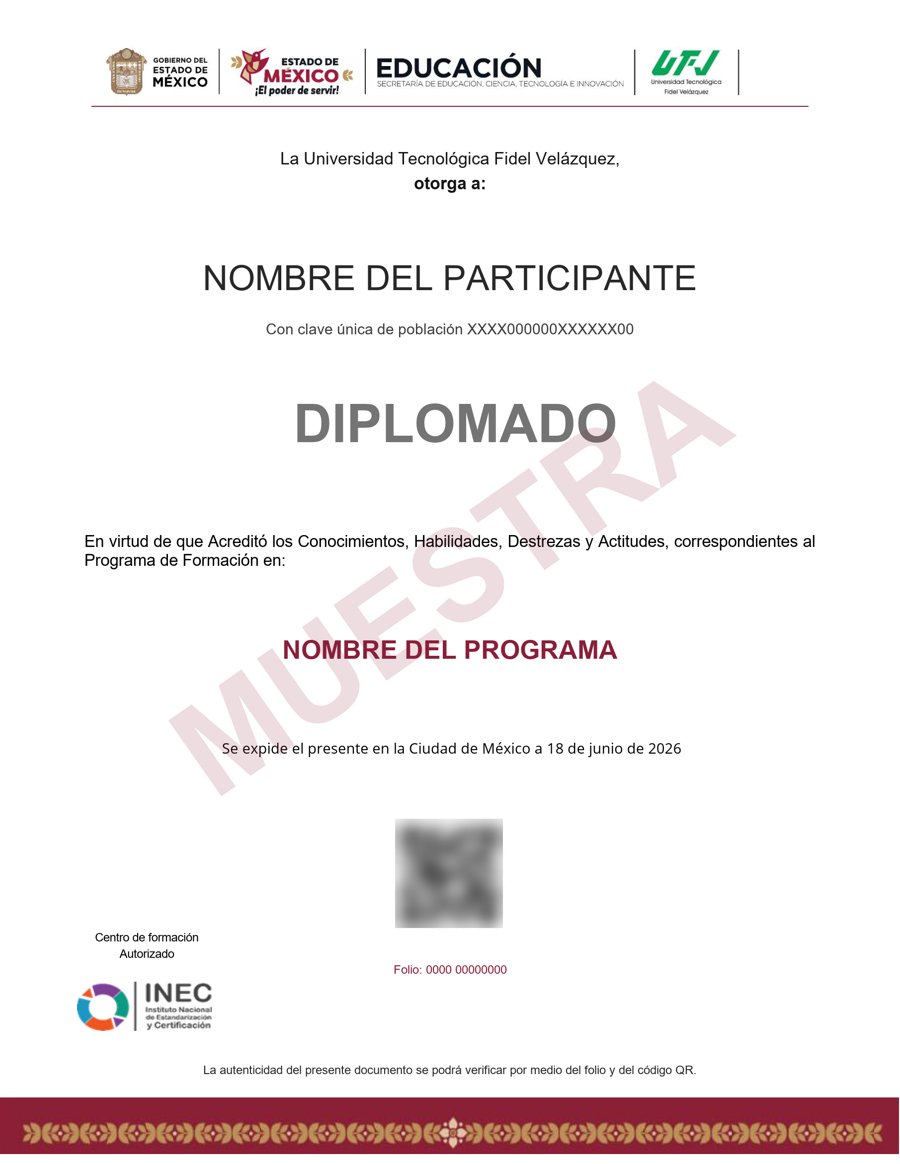
Muestra · verificable por folio y QR
- Emitido por la Secretaría de Educación Pública (SEP), a través del Gobierno del Estado de México. No es una constancia privada: es un documento oficial, y ese respaldo marca la diferencia frente a otras plataformas en línea.
- Contenido impartido por Billy Wigley.
- Folio y QR verificables para compartirlo con quien te contrate.
Empieza hoy, a tu ritmo
Un solo pago y acceso inmediato al curso completo durante 12 meses.
- 17 unidades · 111 lecciones · 60 h
- 12 meses de acceso
- 15 cuestionarios de evaluación
- Certificado emitido por la SEP (Gob. del Estado de México) con folio verificable
Sobre tu inscripción
¿Cómo es el pago?
Un solo pago de $2,800 MXN. No hay mensualidades ni cargos recurrentes.
¿Cuánto tiempo tengo acceso?
12 meses desde tu inscripción, 24/7, para avanzar a tu ritmo.
¿Quién imparte el contenido?
El curso es impartido por Billy Wigley; INEC gestiona tu inscripción, evaluación y certificado.
¿Qué pasa cuando vence mi acceso?
Puedes renovar tu cuenta tú mismo desde la plataforma, sin trámites ni esperas.

